Typed fast, between two meetings.
It says what you need. It also sounds a little annoyed.
AI writing assistant for Mac
As you type an email or message, DraftKey suggests the next words. Press Tab to add them.
Free to try: 500 words of writing help · One-time license in the app
Illustrated example: you type “I’ll send you the”. DraftKey suggests “updated proposal by Friday.” Press Tab to add those words to your message, or keep typing to ignore the suggestion.
DraftKey suggests the next words. Tab adds them.
Illustrated example · suggestions work in compatible Mac text fields
YOU KNOW THIS MOMENT
It’s late. One short email stands between you and bed, and you’ve typed the first line three times.
Illustrated example: late at night, someone starts an email to Jordan and deletes two openings. They type “Hi Jordan, I can’t make tomorrow’s 9:00 meeting,” and DraftKey suggests “but I’ll send my notes tonight so you have everything you need.” They press Tab, and the email is sent.
You type the first line. Delete it. Try again.
DraftKey suggests how the sentence could end, in gray, right after your cursor.
Press Tab and the words are yours. Edit them, or send.
Press Tab and the words are yours. Edit them, or send.
Illustrated example · not a live AI response
TRY ONE SENTENCE
The highlighted words are DraftKey’s suggestion. Tap the button to add them, or focus it and press Tab.
You started the sentence. Accept the ending with Tab.
Hi Alex,
I’ll send you the updated proposal by Friday.
What would you like to change? Pick an action to preview it.
 Review your rewrite
A small change can make all the difference.
Give commands your own names, choose what they do, and set their shortcuts. These settings apply to this website demo and stay in this browser.
Use Command + Option + R, Control + Option/Alt with a letter, Option/Alt with a letter, number, Space or Enter, or ⌘/Ctrl + Enter. Shortcuts work while you use the Rewrite demo. Each action previews a prepared example.
Mechanical keyboard sounds. Type here or play a sample.
WHEREVER YOU WRITE
DraftKey works in compatible text fields across your Mac apps: mail, chat, notes, and documents. You choose which apps it runs in.
SAY IT YOUR WAY
Too blunt, too long, too stiff? Tap Command + Option, pick a change, and preview it before it goes in.
It says what you need. It also sounds a little annoyed.
Good for a teammate who’s probably having a busy week too.
Clear, polite, and nothing you’d regret sending.
For chat, where nobody reads the second paragraph.
Writing tools⌘ ⌥need the report by friday. why is it late again
Hi! Could you send the report over by Friday? If something’s holding it up, let me know and I’m happy to help.
Could you please send the report by Friday? If anything is delaying it, let me know so we can plan around it.
Can you send the report by Friday?
IN THE ACTUAL MAC APP
Tap Command + Option to open Writing tools. Choose Fix writing, Shorter, Clearer, or a tone like Friendly or Professional.
Choose Insert to replace the original text with your rewrite. Your email, document, or chat stays open.
Works in compatible Mac text fields. Some custom editors and secure fields are excluded.

CLIPBOARD HISTORY
That link. That line. The message you copied a moment ago. Keep your latest 10 text copies close, even when you copy something else.
Open your history right where you’re working. No trip to Settings.
See how to recover a copy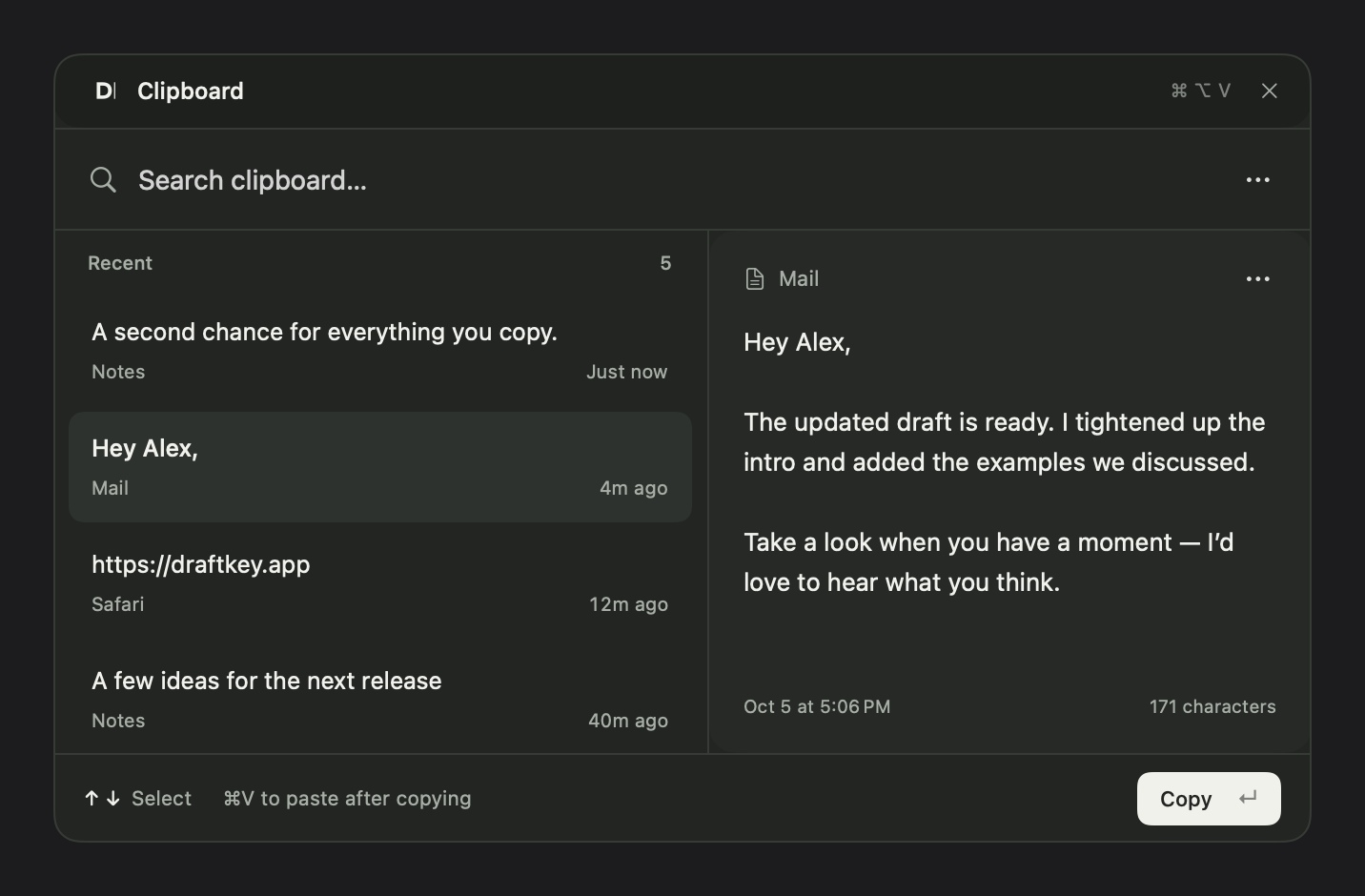
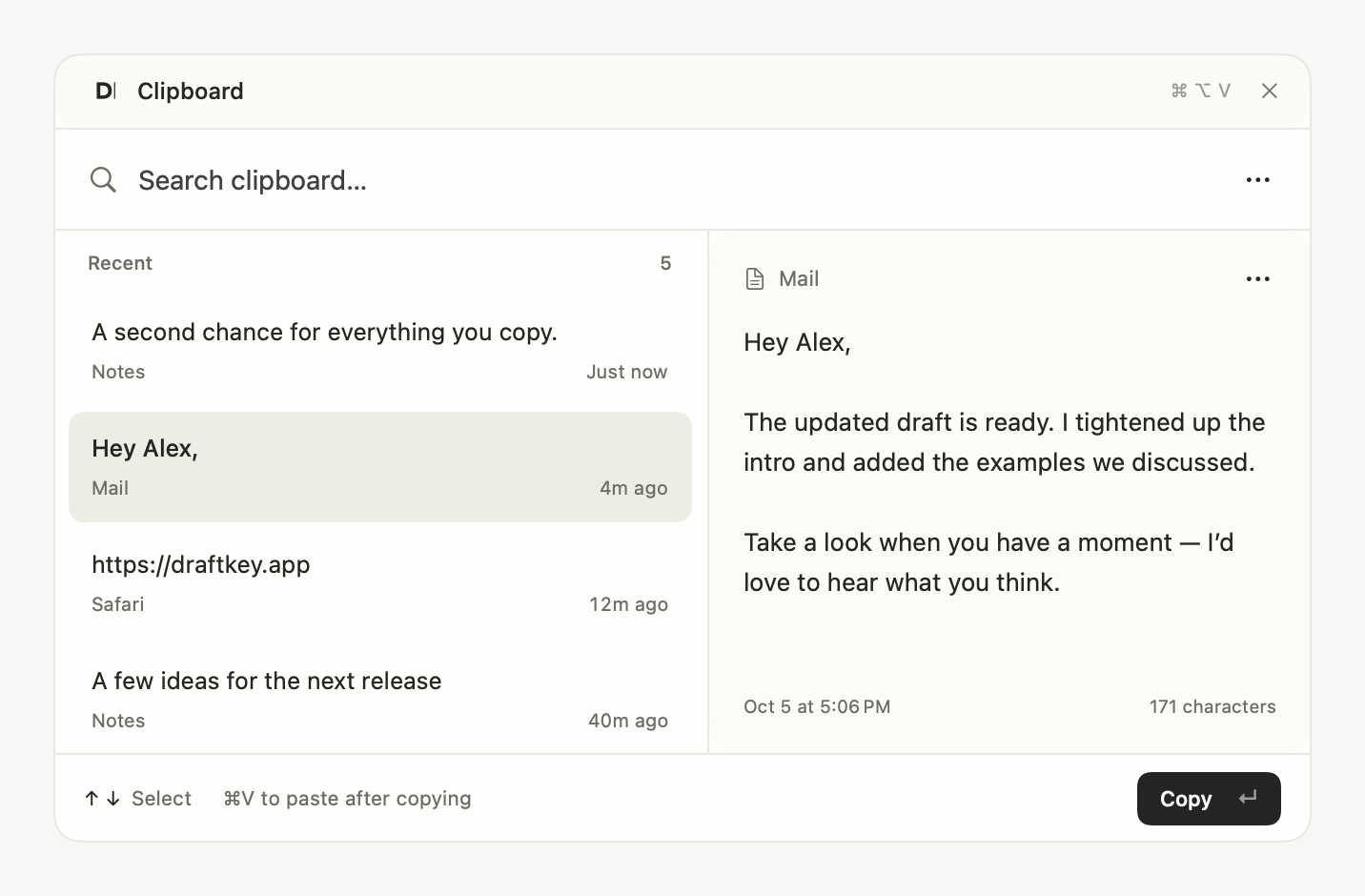
Illustrated example: copy a project link, then review notes and a meeting time. DraftKey keeps the earlier link in clipboard history. Select it, press Return to copy it again, and Command V to paste it into your message.
Your earlier copy, back in your message.
Illustrated sequence · sample content
Keep DraftKey running with history enabled. Copy a link, a sentence, then something else.
Open the picker from your app. Search your copies, or use ↑ and ↓ to choose.
Press Return to copy it again. The picker closes; press ⌘ V to paste where you need it.
Only text is saved, up to 256 KB per copy. The 11th different copy removes the oldest. Copying the same text again moves it to the top without using another slot. History stays on this Mac across restarts.
In Settings → Clipboard, you can delete individual copies, clear history, or stop recording. Pausing DraftKey pauses recording too. Images, files, known password-manager copies, and items marked private are skipped. Copies made while DraftKey is closed or paused aren’t saved.
Press Escape to close the picker without changing your clipboard. Command–V always pastes normally.
JUST FOR FUN
Six recorded switch sounds, free on every Mac, with or without a license. Turn your sound on and type below.
Ready when you are
Your first letter starts the timer.
Cream · soft, full-bodied keystrokes
Mechanical keyboard sounds. Headphones recommended.
EXPLORE DRAFTKEY
Writing features, keyboard sounds, and setup guides for your Mac.
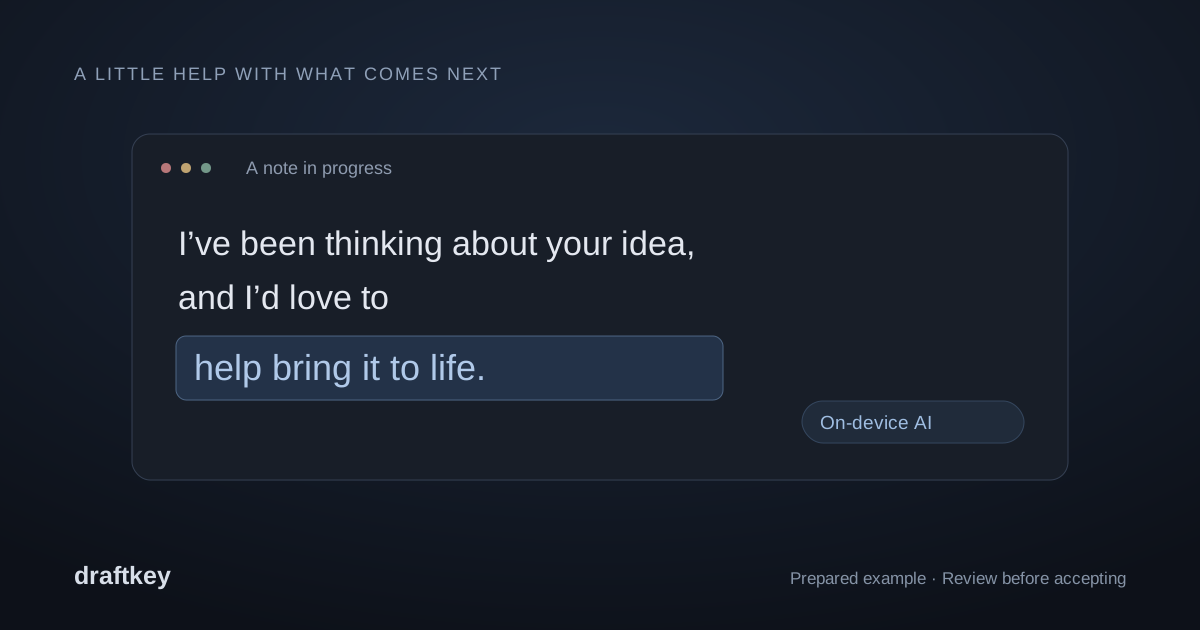
Let the next words come to you. Learn how suggestions work in compatible text fields.
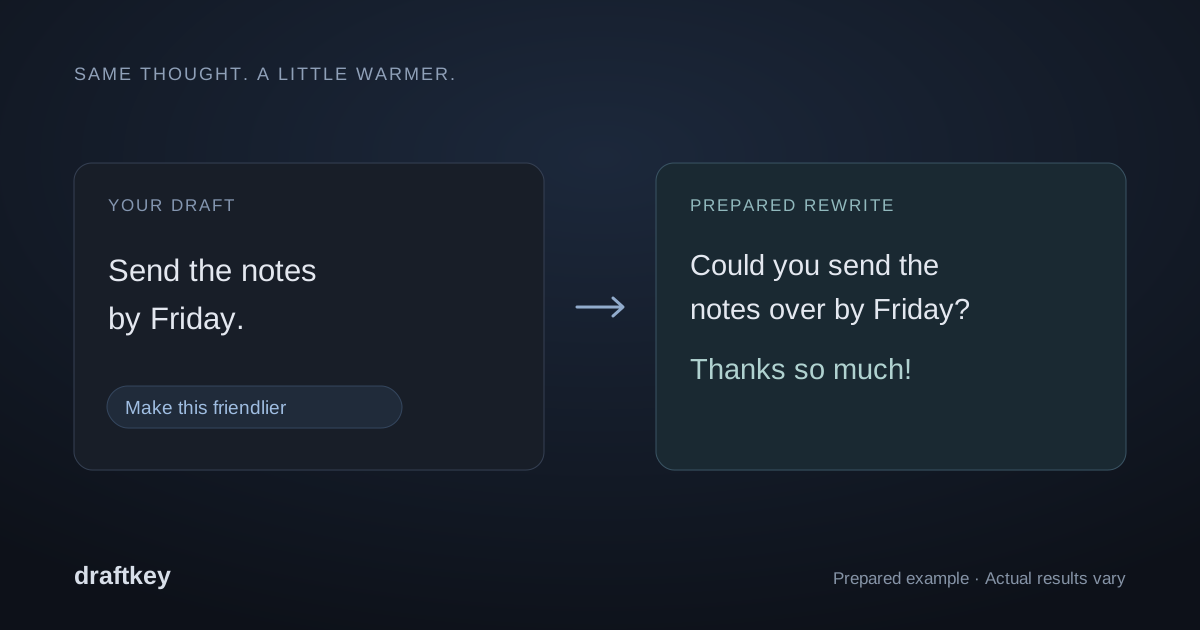
A clearer draft, still your voice. Start with a specific instruction and review the result.
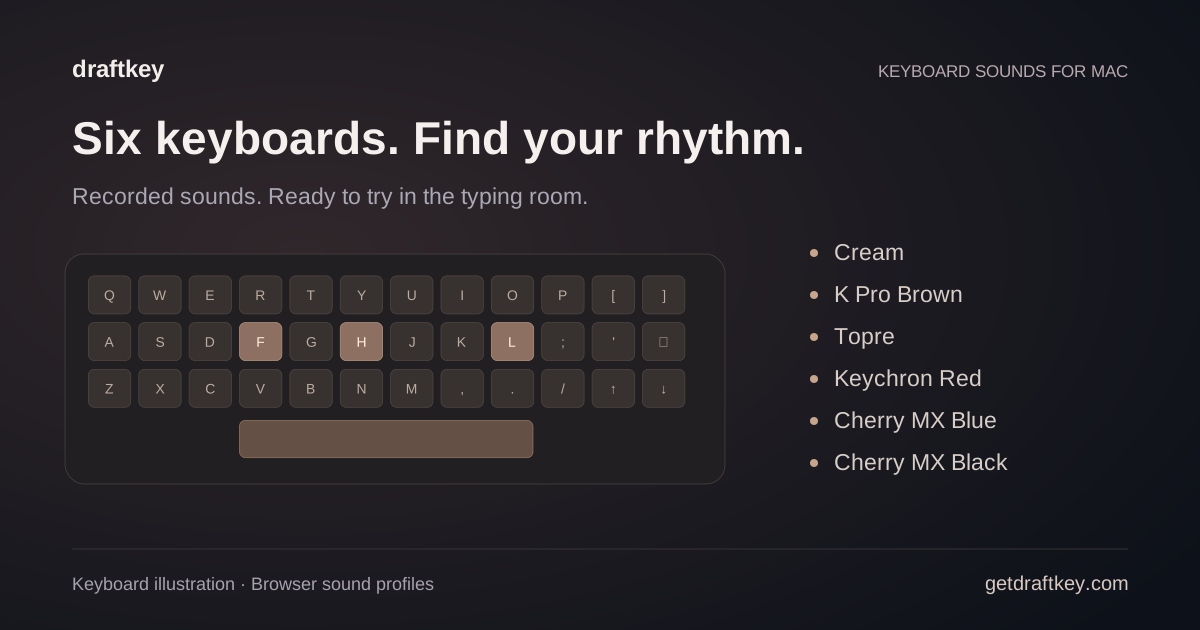
Compare sound profiles, try the typing room, and use sounds independently of AI.
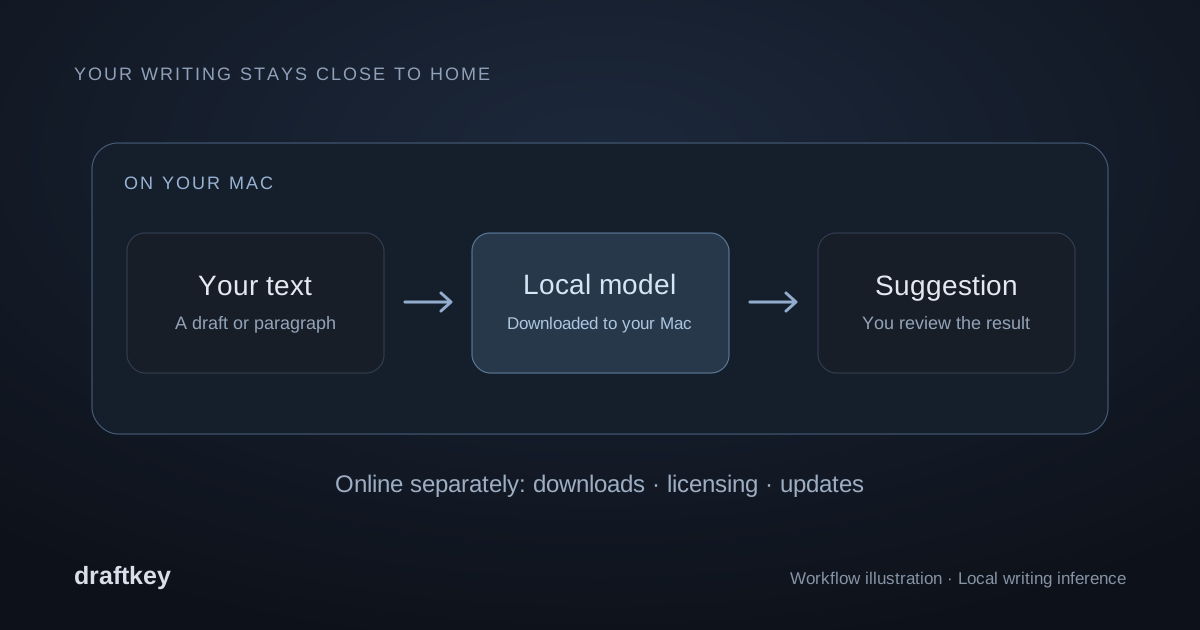
What setup downloads, which steps need the internet, and where you can turn DraftKey off.
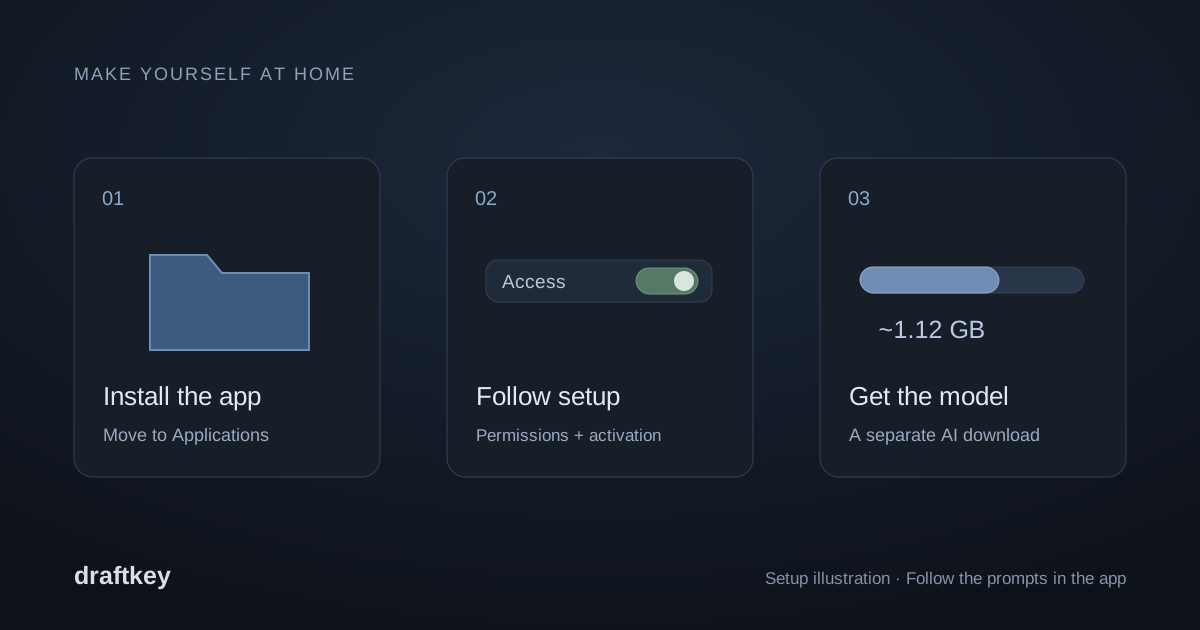
Requirements, permissions, model downloads, and answers when something needs attention.
DraftKey’s writing model runs right on your Mac. Suggestions and rewrites don’t send your writing to a cloud model.
NOTHING TO LOSE
One installer for Apple Silicon Macs on macOS 14 or later.
DraftKey lives in your menu bar. Setup downloads its writing model.
Setup ends with a license screen. Skip it. No card needed.
Then decide. Keyboard sounds and clipboard history stay free either way.
DraftKey is an AI writing assistant for Mac. As you write an email or message, it suggests the next words beside your cursor. Press Tab to add them, or keep typing to ignore them. Optional writing tools, clipboard history, and keyboard sounds are also included.
DraftKey works in compatible text fields through macOS Accessibility. You choose which apps it runs in. Support depends on how each app exposes its text; password fields and some custom editors are excluded.
In a compatible text field, tap Command + Option together, then release to open Writing tools. DraftKey uses your current paragraph, or your selection if you highlight text first. Choose an action or write a request, review the result, and choose Insert. See all shortcuts.
You’ll need an Apple Silicon (M-series) Mac with macOS 14 or later and at least 8 GB of memory. AI features use a separate model download and need about 2.2 GB of free space, plus room for the app. Setup, activation, and update checks need an internet connection. Installation guide.
DraftKey is free to try. Every Mac gets 500 words of AI writing help, covering suggestions, grammar fixes, and rewrites, plus keyboard sounds with no limit. When the free words run out, a $4.99 USD license, paid once for up to three Macs you own, keeps writing help going. Clipboard history is included either way. No subscription. Already purchased? Choose Already have a license? in DraftKey. License terms & refunds.
Words you write in your apps while writing help is on, and words DraftKey adds for you, like an accepted suggestion or an inserted rewrite. The count belongs to your Mac, so reinstalling DraftKey doesn’t reset it. DraftKey sends only a hashed device identifier and a number to keep the count, never your writing. Keyboard sounds don’t count and keep working.
draftkeyFree to download, with 500 words of writing help on us. Start typing in your Mac app, and press Tab when a suggestion fits.
Free to try: 500 words · One-time license in the app
macOS 14+ · Apple Silicon