 draftkeyDownload for Mac
 Keep your train of thought
AI autocomplete.
As you type.
A thought does not always arrive fully formed. DraftKey suggests the next words as you type in compatible text fields. Read the suggestion before you accept it.
Apple Silicon · macOS 14 or later · License required
I’ve been thinking about your idea, and I’d love to help bring it to life.
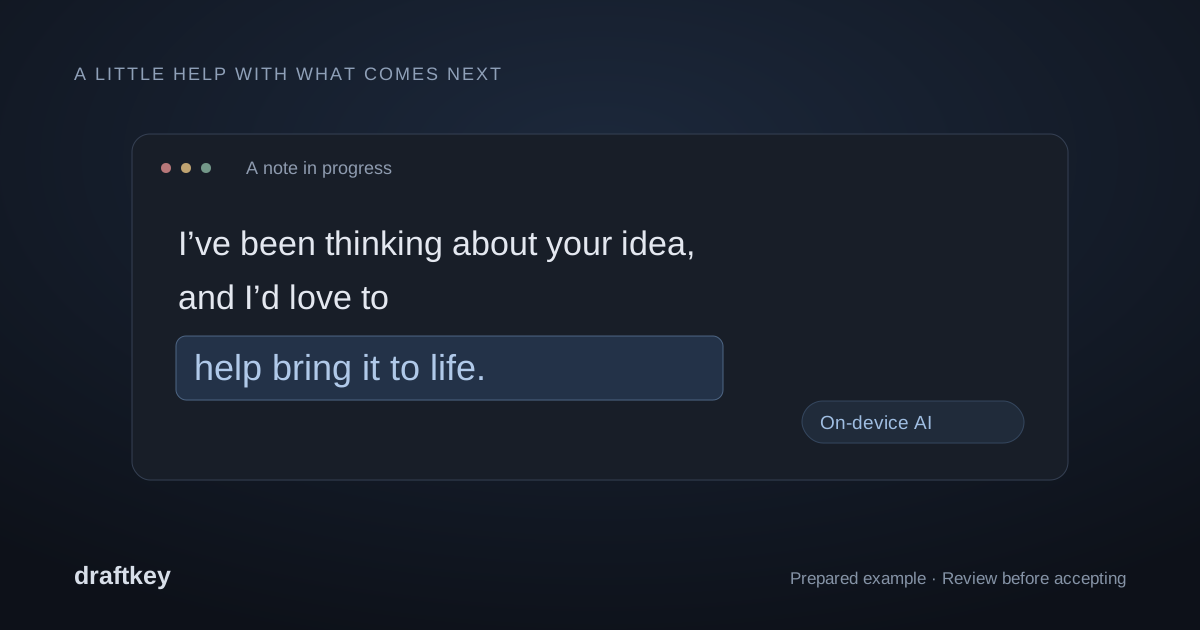
How AI autocomplete works
Autocomplete helps you continue a draft. Instead of asking for a new version of something you have already written, you keep typing and review a suggestion for what might come next. It can be useful for an email, a note, or a message where you know the idea but are still finding the words.
DraftKey is a native Mac app. It uses macOS Accessibility to work with supported text fields, so you can keep writing in your existing editor instead of moving your paragraph into a separate chat window.
- Open DraftKey and enable autocomplete in a compatible app.
- Start your sentence in the text field you normally use.
- Read the suggestion before accepting it. Keep typing if you want to take the sentence somewhere else.
Accept one word at a time
You do not have to accept the whole suggestion. Press Option + Right Arrow to take only the next word, then decide whether to keep going. If you have configured that shortcut to accept the entire suggestion, use Option + Shift + Right Arrow for one word instead.
For example, a suggestion might fit the beginning of your sentence but not the ending. Take the words you want and continue with your own wording. You can also keep typing to ignore a suggestion. Check your autocomplete settings to see which shortcut accepts the whole suggestion.
Word-by-word acceptance is documented in the DraftKey 0.1.45 release notes.
Download the model, then review the suggestion
Autocomplete needs the separate writing-model download. Clicking Get started in the Mac app begins that download in the background. This website does not include the Mac app, so it does not describe where a suggestion is produced.
Downloading the model, activating a license, and checking for updates use network services. Read the privacy notice for what this website and the license service store. Always review a suggestion before you accept it.
Compatible apps and Mac requirements
DraftKey requires an Apple Silicon Mac with macOS 14 or later. AI needs at least 8 GB of memory. The separate writing-model download is approximately 1.12 GB and needs at least 2.2 GB of free space, with additional space for the app.
Text-field support depends on how an editor exposes its text through macOS Accessibility. Some custom editors are not supported, and secure fields are excluded. Per-app controls let you choose where DraftKey is active.
Follow the installation and model setup guide to get started. Clicking Get started in the Mac app begins the model download in the background.
Autocomplete or rewriting?
Use autocomplete when you want to keep a sentence moving. Use instruction-based rewriting when you already have a paragraph and want a specific change, such as a shorter version or a friendlier tone.
Autocomplete, rewriting, and keyboard sounds have independent controls. You can use writing suggestions in one part of your day, turn them off in another, or keep only the typing sounds on. Always review AI suggestions for meaning and accuracy before using them.
Make yourself at home.
Check the requirements, install DraftKey, and find your own flow.