Cream
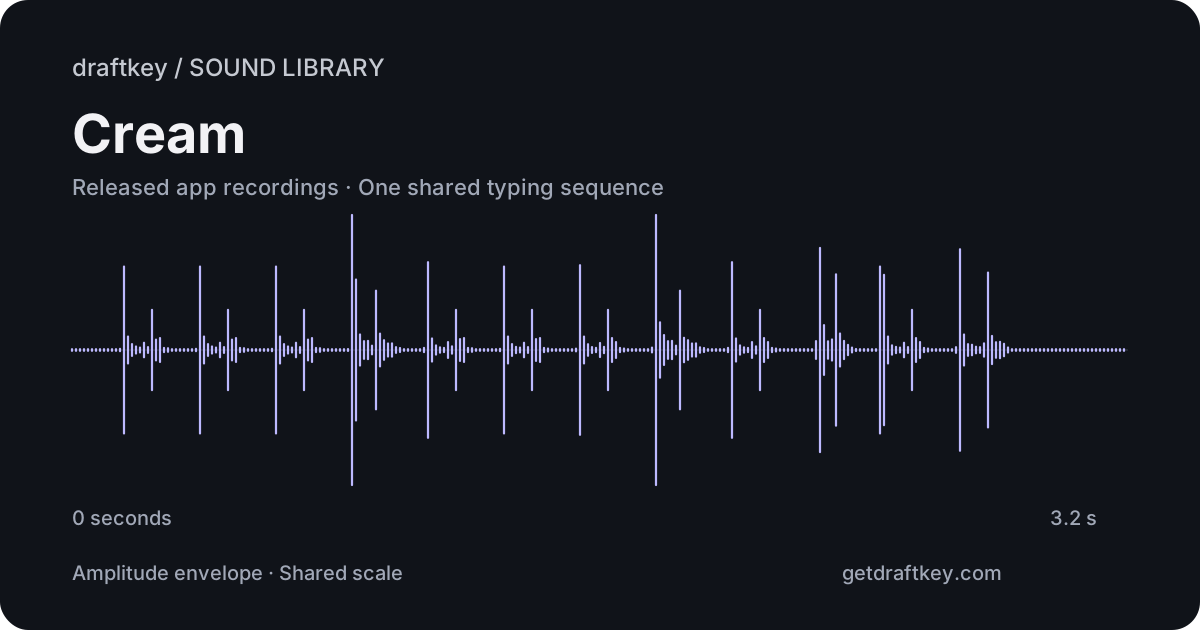
Soft, full-bodied keystrokes. Compare the body of each letter with the wider spacebar sound.
 draftkeyDownload for Mac
 Make every keystroke feel like yours
Give your Mac typing a soundtrack. DraftKey pairs mechanical keyboard sounds with independent controls, so you can enjoy the sound of writing whether you use AI or not.
Apple Silicon · macOS 14 or later · License required
HEAR THE DIFFERENCE
Play the same 3.2-second sequence with each profile. These clips use the recordings bundled with DraftKey, including key presses and releases, two spaces, a Backspace, and a final Return. Start at a comfortable device volume.
Soft, full-bodied keystrokes. Compare the body of each letter with the wider spacebar sound.
Gentle and tactile. Listen for the separation between the press and release of each key.
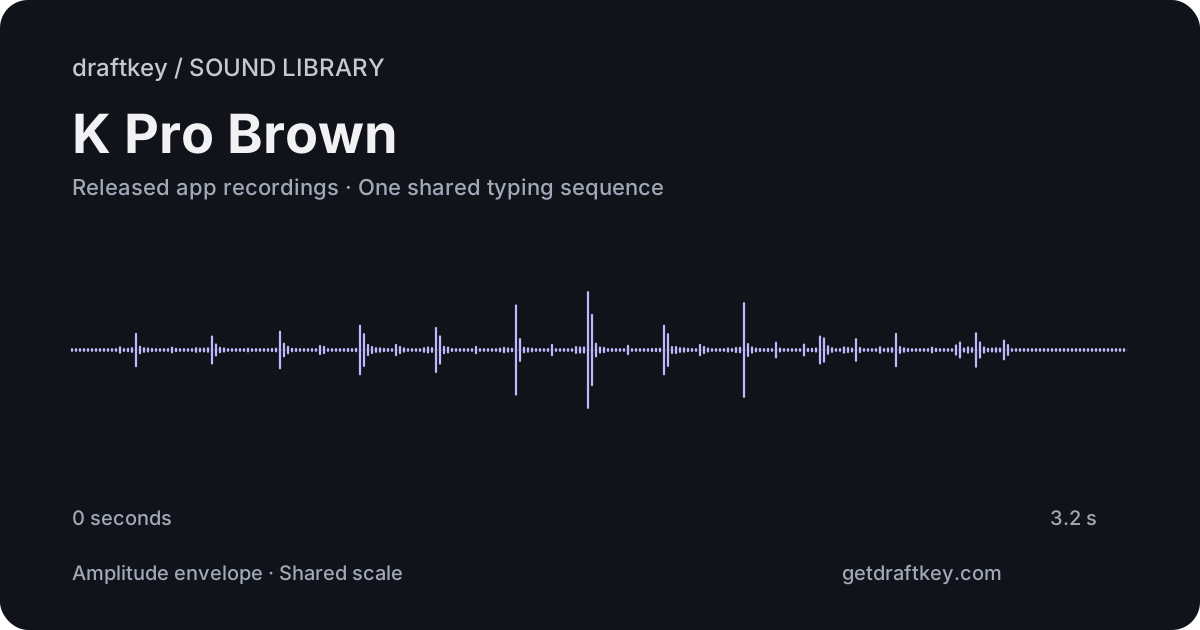
Soft and rounded. Compare its short letter sounds with the longer tails in the other profiles.
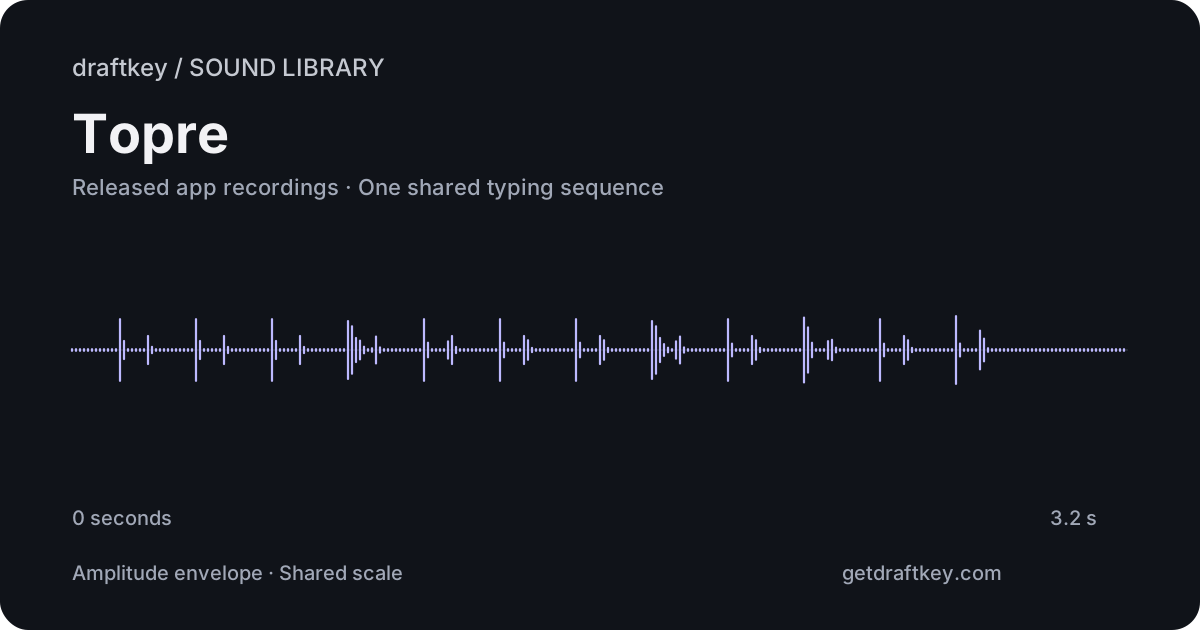
Low and smooth. Hear how the letter keys, spaces, and final Return change the rhythm.
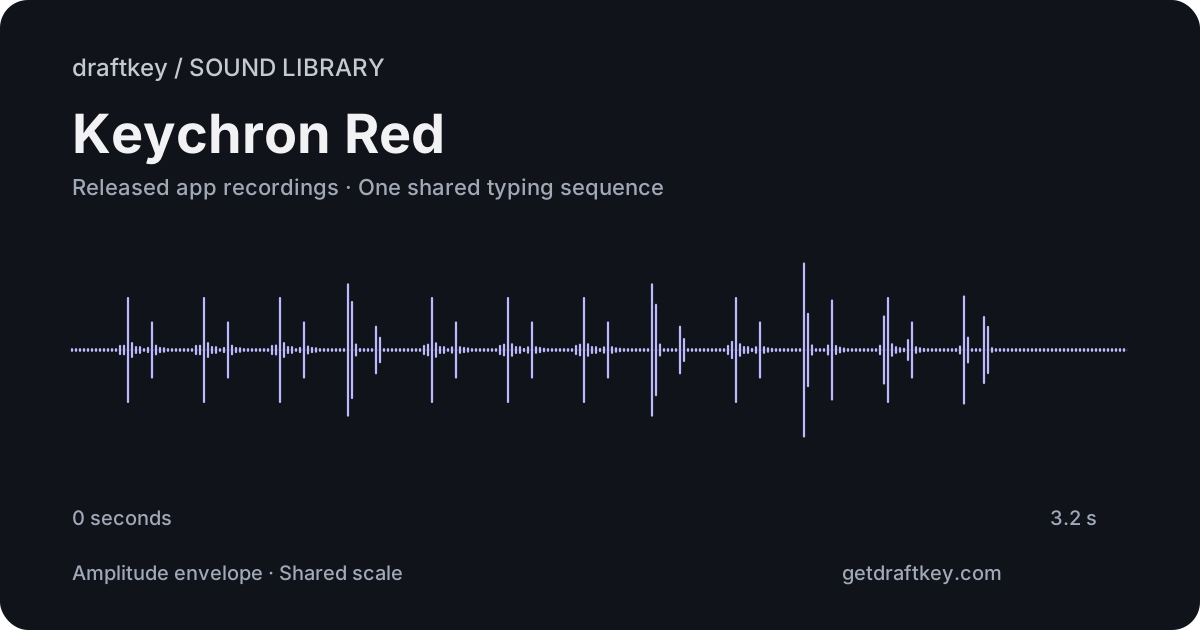
Crisp and clicky. Try it after a rounded profile to hear the sharper attack of the recordings.
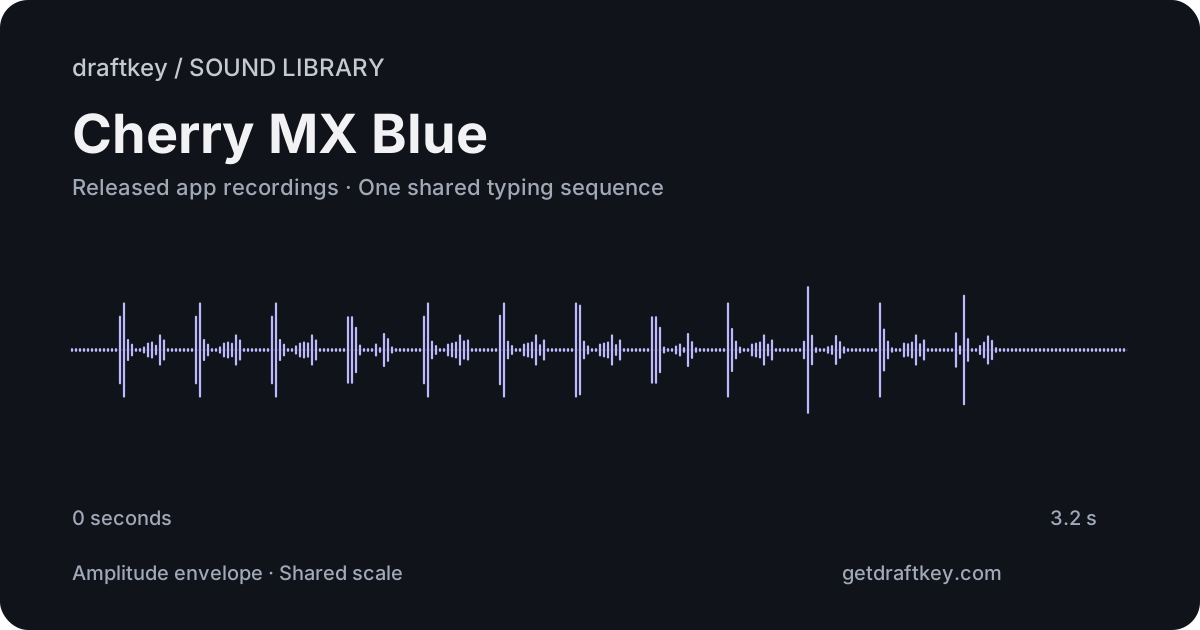
Deep and rounded. Compare it with Cherry MX Blue at the same playback volume.
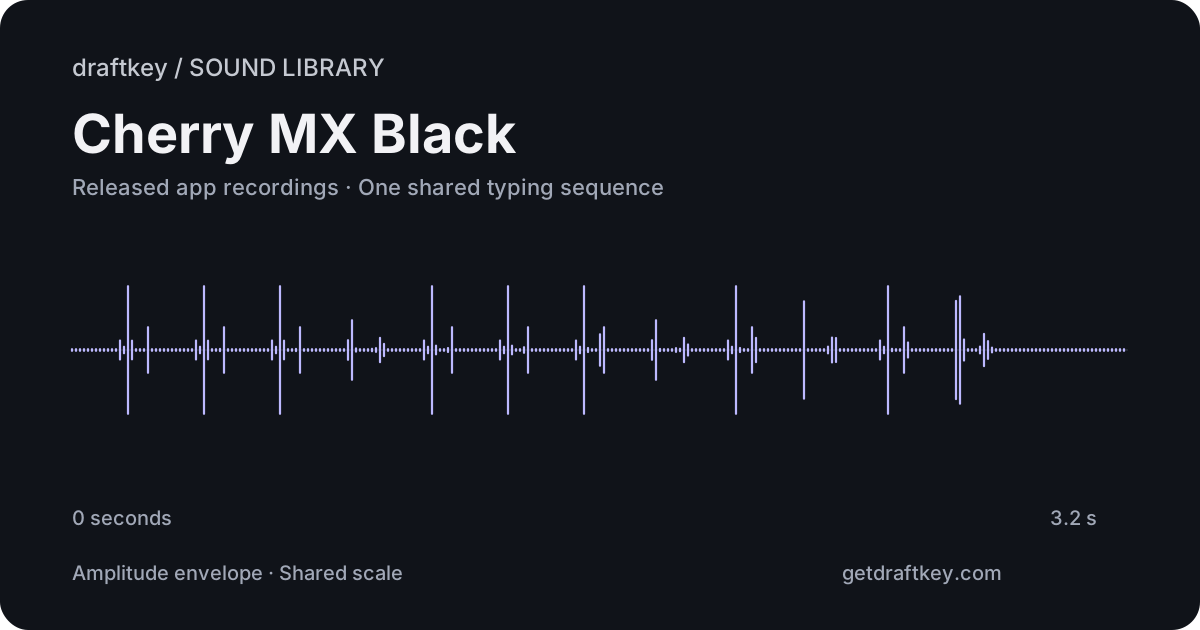
Every sample uses the same key order, timing, and playback gain, mixed to mono without per-profile loudness normalization or tone changes. The waveform diagrams show the actual sample envelopes on a shared scale. They are not measurements of a physical keyboard’s loudness or proof that one profile is better.
The source recordings come from the released DraftKey 0.1.41 app. These are prepared listening sequences, not recordings of someone typing live. Speaker choice, output volume, and the typing room’s tone and stereo controls affect what you hear. Profile names do not imply manufacturer endorsement.
The DraftKey typing room is a place to hear the website’s sound profiles before downloading the Mac app. Turn the sound on, choose a profile, and type. You can also play a sample to hear a short sequence without starting a typing test.
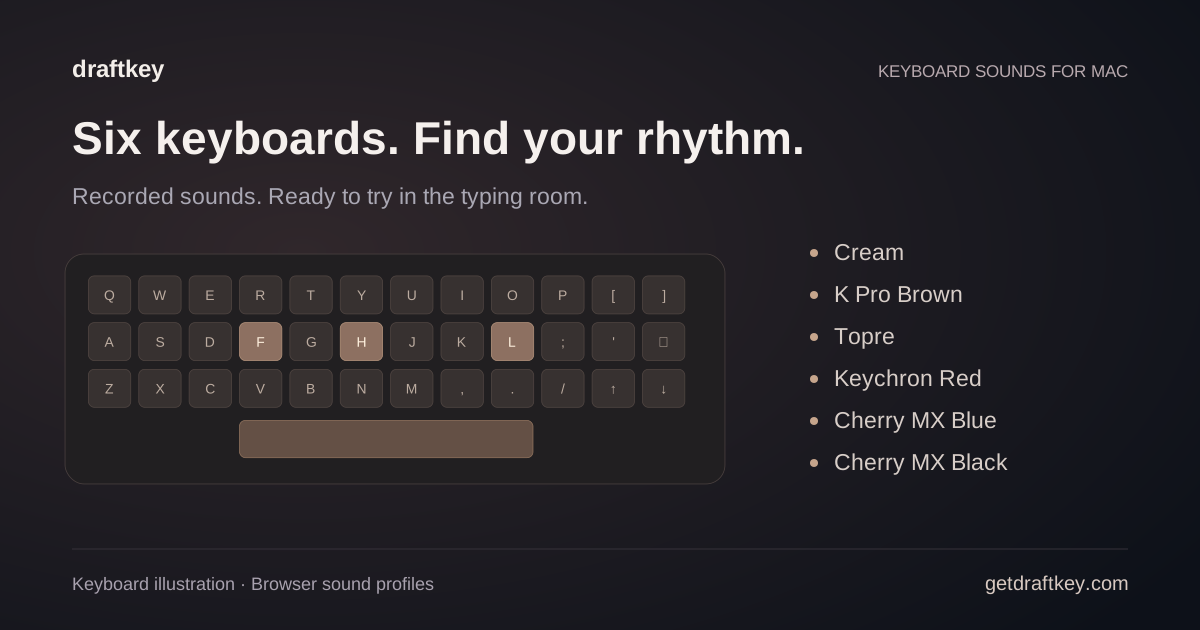
The browser preview uses recordings bundled with the released Mac app. The six keyboards match the released Mac app: Cream, K Pro Brown, Topre, Keychron Red, Cherry MX Blue, and Cherry MX Black. Choose the sound you enjoy; the profile names do not imply endorsement by a keyboard manufacturer.
Headphones make it easier to hear the differences. Start with a comfortable volume, then use the tone control to explore a deeper thock or a brighter clack.
The typing room includes a timed typing test with words per minute and accuracy. Your first letter starts the timer. Use the restart control for another attempt, or switch to free typing when you want to write without a passage to follow.
The website sound settings include volume, tone, and stereo. Stereo places sound across the keyboard as you type. The demo includes key-down and key-up sounds, with distinct sounds for keys such as the spacebar and Enter.
Typing-room text is processed in your browser. Sound preferences and typing-test best scores are stored in that browser. Clearing browser storage removes those saved settings. See the privacy notice for website storage details.
In the DraftKey Mac app, typing sounds, autocomplete, and rewriting have independent controls. You can keep the sounds on while leaving AI features off. A sound preference does not have to be a writing preference.
The website preview works inside its typing room. To use DraftKey’s typing sounds on your Mac, download and install the Mac app, follow its permission setup, and activate it with your license key. No DraftKey account is required.
DraftKey supports Apple Silicon Macs with macOS 14 or later. If you also enable AI writing, you need at least 8 GB of memory, a separate model download of approximately 1.12 GB, and at least 2.2 GB of free space plus room for the app.
Try the same short passage with each browser profile so you can hear how the sound changes. Adjust volume before tone, and try stereo both on and off. A softer setting may suit a long writing session; a brighter profile may make individual keystrokes easier to distinguish.
When you want help with the words as well as the sound, DraftKey also offers autocomplete and instruction-based text rewriting. You decide which parts to use.
Check the requirements, install DraftKey, and find your own flow.