 draftkeyDownload for Mac
 A smooth start
Meet your Mac’s
new writing habit.
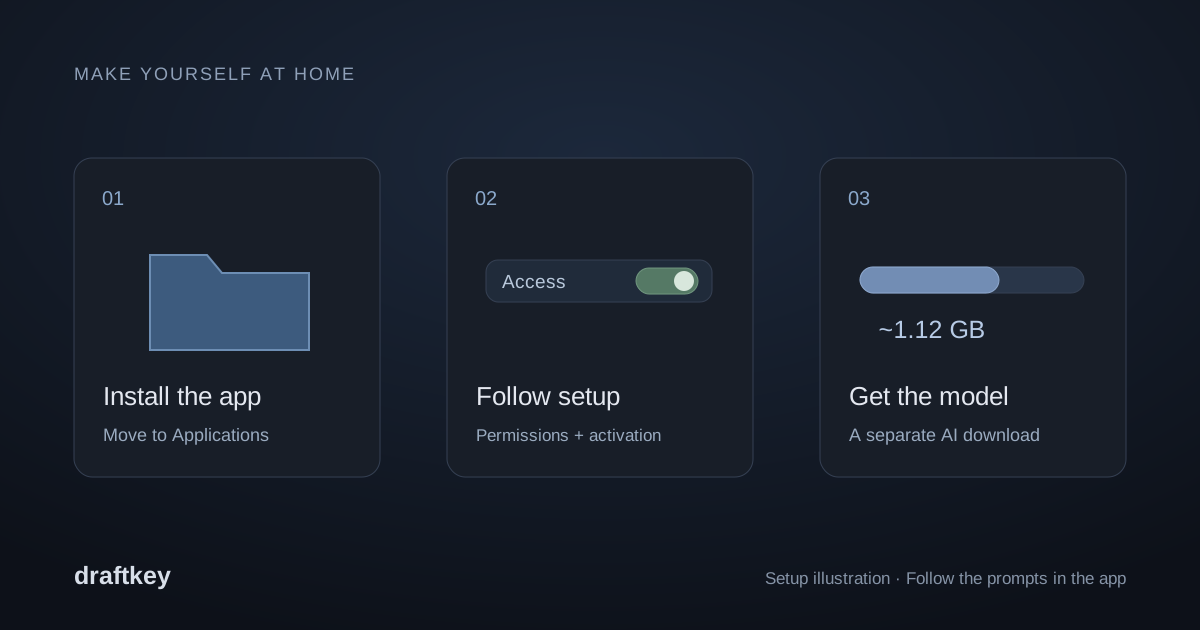
Install DraftKey, follow its permission setup, activate your license, and download the writing model. Here is what to check if a step needs a little attention.
Apple Silicon · macOS 14 or later · License required
Check your Mac before downloading
DraftKey requires an Apple Silicon Mac running macOS 14 or later. AI writing requires at least 8 GB of memory. Open About This Mac from the Apple menu to check your chip, memory, and macOS version.
The writing model is a separate download of approximately 1.12 GB. Allow at least 2.2 GB of free space for it, plus additional space for the app. The Mac app requires a purchased license for activation; no DraftKey account is required.
If you are only exploring the product, try the browser typing test and the prepared writing examples first. The website examples do not activate or test the Mac app.
Install DraftKey and follow its setup prompts
- Get the installer from the official download page and open DraftKey.dmg.
- Drag DraftKey into Applications, then open that installed copy. DraftKey lives in the menu bar.
- Follow the app’s permission setup. Writing help uses macOS Accessibility to work in compatible text fields.
- Activate with your license key. Keep a copy of the key for future activation and support.
- Choose which features to enable. Autocomplete, rewriting, and sounds have independent controls.
You can review Accessibility access under System Settings → Privacy & Security → Accessibility. If a permission change does not take effect, quit and reopen DraftKey, then try a compatible text field again.
Give the writing model time to download
Clicking Get started in DraftKey begins the model download in the background. Keep your Mac connected to the internet while it finishes. The app download and the model download are separate steps.
If writing help is not ready, check the app’s download status, your connection, and available disk space. A downloaded installer alone does not mean the writing model is ready. If the model download reports a failure, record that message before contacting support.
Once the model is ready, writing inference runs locally on your Mac. Setup, licensing, and updates still involve online services.
Autocomplete or rewriting is not appearing
Check these items in order. They help distinguish a setup problem from an unsupported editor.
- Check that DraftKey is running and activated. Open it from Applications and review any setup prompts in the menu-bar app.
- Check the model and feature controls. The writing model must be ready, and the feature you want must be enabled.
- Check permissions and per-app settings. Confirm Accessibility access and that DraftKey is enabled for the app you are using.
- Try an ordinary text field. Secure fields are excluded. Custom editors may not expose the text access DraftKey needs.
- Check your shortcut. Tap Command + Option together, then release, to open Writing tools. If you customized the shortcut, use your configured binding.
For a rewrite, DraftKey uses the current paragraph unless you highlight a selection. Try a short paragraph and a specific instruction, then review the result before applying it. The rewrite guide explains the workflow; the autocomplete guide covers sentence suggestions.
Support varies by text field, even within an app. Working in one field does not guarantee that every custom editor is compatible.
Keyboard sounds are quiet or missing
For the website preview, turn sound on in the typing room, choose a profile, and type inside that room or play its sample. Check the demo volume, your Mac’s output volume, and whether the browser tab is muted. A browser preview does not add sounds to other apps.
For sounds across your Mac, open the installed DraftKey app and check its sound controls and permission setup. Sounds can be enabled independently of AI. Compare the website’s Cream, K Pro Brown, Topre, Keychron Red, Cherry MX Blue, and Cherry MX Black profiles in the keyboard sounds guide.
Still need a hand?
Email contact@aura-technologies.co with your macOS version, Mac chip, DraftKey version, the affected app, and the exact error message or step where the issue happens. A short example using non-sensitive text can make a text-field issue easier to reproduce.
Leave passwords, private drafts, payment details, and license keys out of public screenshots or posts. For available app updates, check Settings → About & updates and the official release notes.
Ready when you are.
The official installer and a quick installation walkthrough.