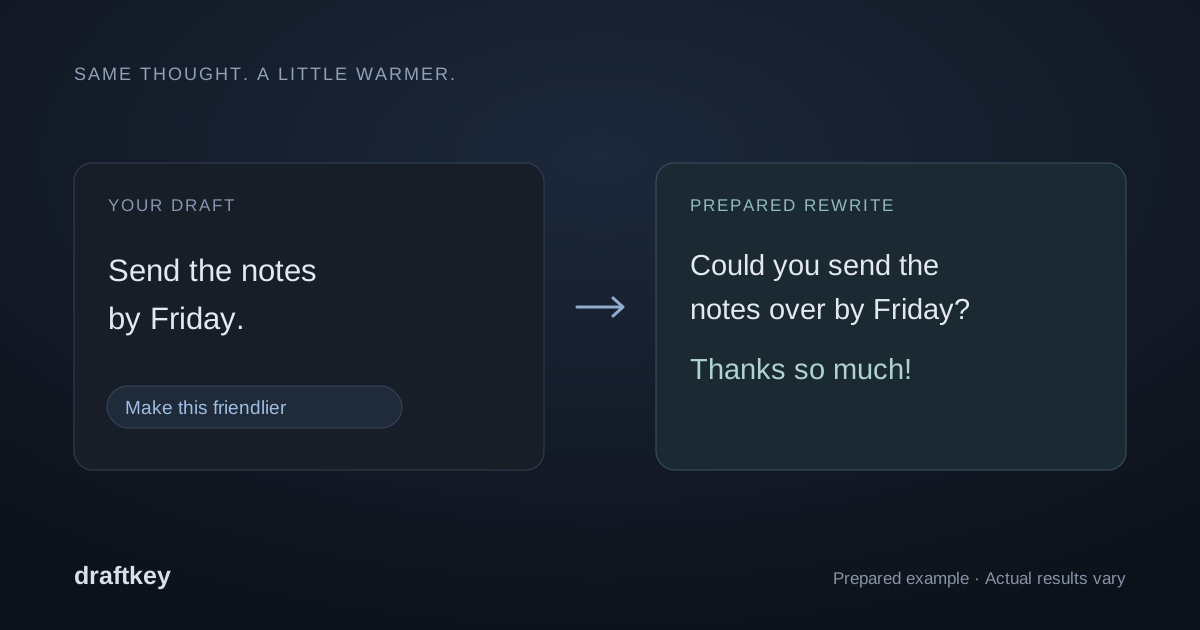
Revise the draft you already have.
Start by writing the message in your own words. Include the actual request, any deadline, and the context the recipient needs. DraftKey can help with the wording; it cannot know a missing fact or decide what you should promise.
- Put the cursor in your draft in a compatible text field. DraftKey uses the current paragraph. Highlight a specific passage if you want to revise only that part.
- Tap Command + Option together and release to open Writing tools.
- Choose an action such as Friendly, Professional, or Shorter, or enter a specific instruction.
- Read the preview. Edit anything that changes your meaning, adds a promise, or sounds unlike you.
- Choose Insert to return the rewrite to your editor. Review the complete email before using your email app’s Send button.
For a multi-paragraph email, work on one passage at a time when each needs a different change. A greeting might need warmth while a project update needs fewer words. See the Writing tools guide for the preview and direct-rewrite workflows.
Three requests to try.
These are prepared examples to show how to specify an edit. They are not measured outputs from the app, and the model may phrase its response differently.
A follow-up without extra pressure
Your draft: “I sent the proposal on Monday. Have you reviewed it? I need your comments by Thursday at 3 p.m.”
Try asking: “Make this a polite follow-up. Keep Monday and Thursday at 3 p.m. Do not add urgency or a new commitment.”
Prepared revision: “I’m following up on the proposal I sent on Monday. Could you share your comments by Thursday at 3 p.m.? Thank you.”
Check: Is the deadline still exact, and is the request clear?
A shorter project update
Your draft: “The design review is complete. The copy review is still waiting on Mira. I will share the final document once her comments arrive.”
Try asking: “Shorten this update. Keep who is reviewing the copy and the condition for sharing the final document.”
Prepared revision: “Design review is complete; copy review is awaiting Mira’s comments. I’ll share the final document after they arrive.”
Check: The rewrite should not invent a completion date or say the whole review is finished.
A clear request for a missing file
Your draft: “The attachment wasn’t there, so I couldn’t check the numbers. Send the spreadsheet again.”
Try asking: “Make the request professional and friendly. Keep the reason I need the spreadsheet.”
Prepared revision: “The attachment didn’t come through. Could you resend the spreadsheet so I can check the numbers?”
Check: Keep the intended action visible. A polite message should still tell the recipient what you need.
Keep names, dates, and commitments intact.
Before inserting a rewrite, compare names, amounts, dates, links, and next steps with the original. Check who is responsible for each action. Watch for a conditional sentence becoming a promise, or an unanswered question becoming an asserted fact.
Use a specific instruction: “Keep the deadline unchanged” is more useful than “make it better.” If you only need typo cleanup, use spelling and grammar fixes instead of asking for a new tone. If you are still composing the sentence, autocomplete may fit better than rewriting.
For a quick in-place edit, a slash command such as /shorter followed by a space replaces the current text directly. It does not use the preview-and-Insert workflow. Prefer the preview when you want to inspect the proposed version first; the shortcut reference explains how to undo direct changes.
Local writing assistance, with editor-specific support.
DraftKey generates writing suggestions on your Mac rather than sending the draft to a cloud AI inference service. Setup, licensing, model downloads, and updates use online services. Read the local AI guide and privacy notice for those distinctions.
Compatibility depends on the text field’s macOS Accessibility support, including when an email editor is inside a browser. This guide does not promise support for every email app, account, or custom editor. Secure fields are excluded. Per-app controls let you choose where DraftKey is active.
If the rewrite misses your intent.
Keep the original and narrow the request. Specify one change at a time, select a smaller passage, or edit the preview yourself. Check that the writing model is ready and the app is allowed if Writing tools does not appear. The setup guide covers permissions and model readiness.
For app behavior, see the official Writing tools and shortcut release notes and current release history. The example emails here are writing exercises, not endorsements or real customer correspondence.
 draftkeyDownload for Mac ↗