 draftkeyDownload for Mac ↗
A REFERENCE FOR YOUR NEXT DRAFT
A few keys.
A little less friction.
Keep DraftKey’s writing shortcuts and slash commands in one place. These controls work in compatible Mac text fields after setup; autocomplete acceptance depends on your selected shortcut setting.
Writing and undo shortcuts.
On a Mac keyboard, Command is ⌘, Option is ⌥, and Control is ⌃. Press the keys in each combination together. Writing tools opens after you release Command and Option.
Scroll the table sideways on a small screen to read each shortcut’s behavior.
| What you want to do | Keys | What to expect |
|---|---|---|
| Open Writing tools | Command + Option, then release | Use the current paragraph, or highlight a passage first. Review the rewrite before choosing Insert. |
| Undo an automatic fix or slash rewrite | Control + Option + Z | Take back the change. This is distinct from an editor’s usual Command + Z shortcut. |
| Accept the next suggested word | Option + Right Arrow | Take one word of an autocomplete suggestion under the default word-acceptance behavior. |
| Accept one word with alternate settings | Option + Shift + Right Arrow | Use this if Option + Right Arrow is configured to accept the entire suggestion. |
Check your autocomplete settings for the whole-suggestion acceptance key. To ignore a suggestion, keep typing your own words. The autocomplete guide explains when accepting one word is useful.
All six slash commands.
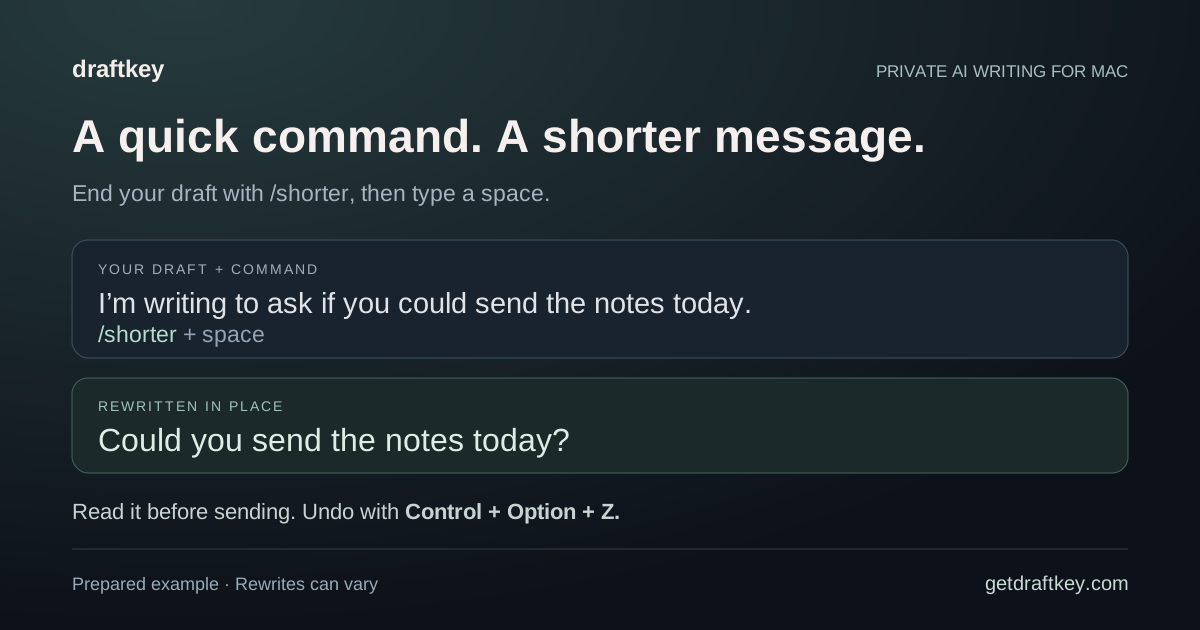
Finish the message with a command and then type a space. That trailing space triggers an in-place rewrite. Review the result before sending; Control + Option + Z undoes it. The command names are literal text, not keyboard combinations.
| Type this, then a space | Request |
|---|---|
/shorter | Reduce the length. |
/clearer | Make the wording easier to follow. |
/warmer | Use a friendlier tone. |
/formal | Use a more formal tone. |
/casual | Use a more relaxed tone. |
/fix | Request spelling and grammar cleanup. |
Choose a preview when you want to compare.
Writing tools gives you a proposed version that you can read and edit before choosing Insert. A slash command changes the text directly. Use the preview when the draft contains details you want to compare carefully, such as a deadline, a name, or a specific commitment.
Automatic spelling and grammar fixes are a third workflow: they apply during a typing pause when enabled. The correction chip shows what changed, and the undo shortcut takes it back. Learn about undo and local word preferences, or try the email-writing walkthrough for concrete editing requests.
When a shortcut does not work.
- Put the cursor in a normal, compatible text field. Some custom editors do not expose enough text through macOS Accessibility; secure fields are excluded.
- Check that DraftKey is running, the relevant writing feature is enabled, and the app is allowed in per-app controls.
- For Writing tools, release Command and Option after tapping them together. Check the writing-model status and requested macOS permissions.
- For autocomplete, confirm there is a suggestion to accept and check whether Option + Right Arrow is assigned to a whole suggestion.
- For slash commands, check the spelling and the trailing space. Use the undo shortcut if a change was not what you intended.
Follow setup and troubleshooting if these checks do not resolve it.
Versions and sources.
These controls are documented in the official DraftKey 0.1.45 release notes. The 0.1.48 release confirms the tap-and-release Writing tools shortcut and includes fixes for quitting while typing. Check release history for newer changes and your installed settings for configurable behavior.
DraftKey’s writing model runs locally. Installation, model downloads, licensing, and updates still use online services. See how local writing AI works for requirements and privacy details.